
Silica Control ToolTM Orientation
Silica Control Team
The Screen Layout
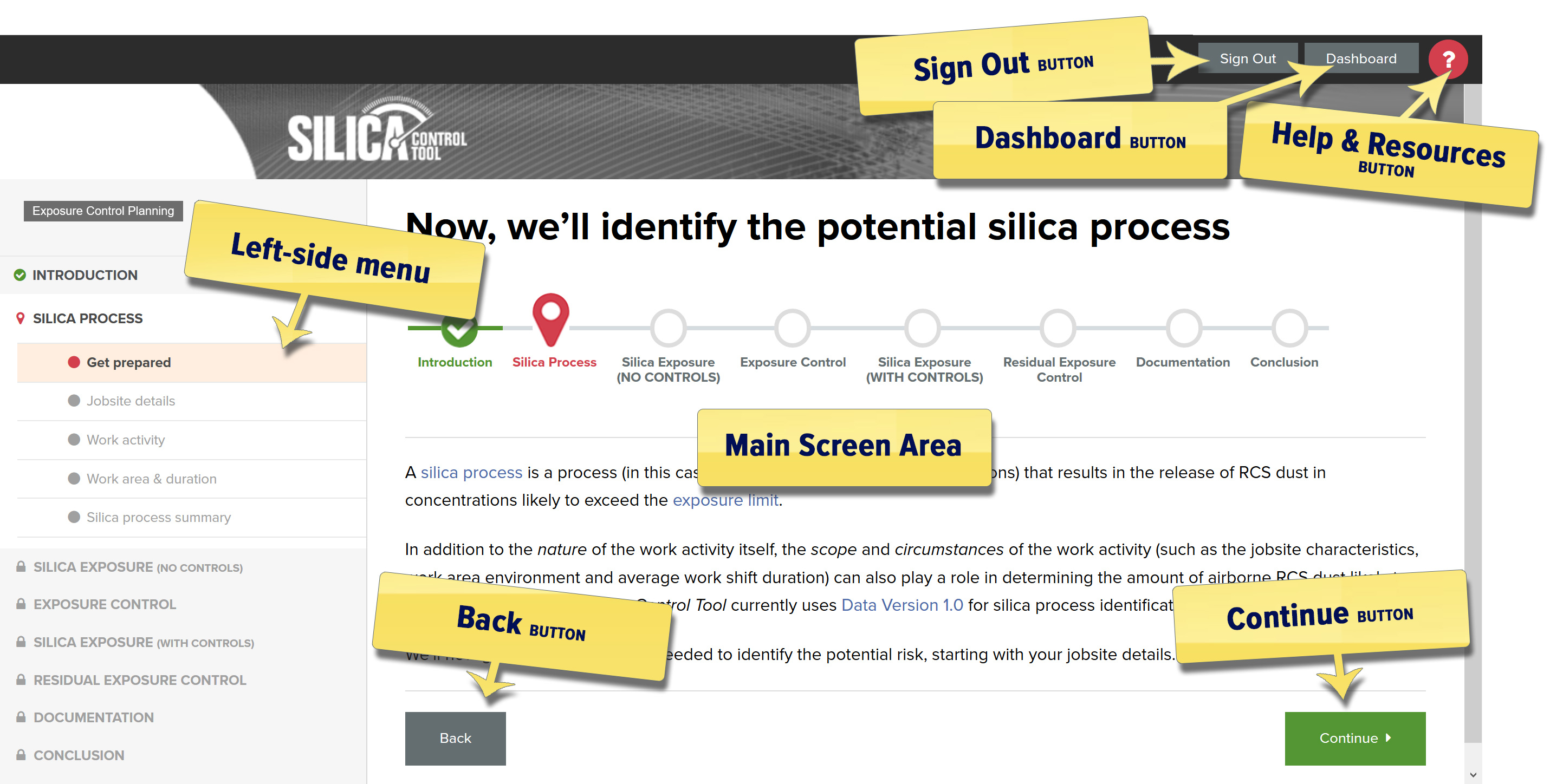
The Screen Components
-
Left-side menu. Use the left-side menu to track your progress or jump to a different screen. Screens are LOCKED until you UNLOCK them by completing screen tasks. RED map marker ( ) is where you are. GREEN checkmark ( ) is what you've completed. GREY lock ( ) is what still needs to be done. Need to make a change or revisit a detail? At any time, you can navigate backwards or forwards to any GREEN checkmarked ( ) screen.
-
Main screen area. The main screen area is where you will perform screen tasks. On certain screens the task is to read the information. On other screens, tasks may be to enter data or answer questions.
-
Continue button. Once you've completed the screen tasks, click "Continue" to save your work and proceed to the next screen.
-
Back button. Clicking "Back" will take you to the previous screen. Please note that your work will not be saved when you go back.
-
Help & FAQ's button. The Silica Control ToolTM features an educational component for silica control (and also support for using the Tool). Specific topics, resources and questions are linked from the Main Screen Area. You can also navigate or keyword search the help and resources directly. To access the Help & FAQ's, click
from any screen.
-
Dashboard button. Clicking "Dashboard" will take you to your exposure control planning projects. From here, you can Open existing exposure planning projects, or Start New planning projects and documentation. From your Dashboard, you can also update your account details, and manage who else has access to your exposure contol planning. You can access your Dashboard from any screen, and clicking this link will save the last screen you were on before the link was clicked.
- Sign Out button. If you're going to come back at a later time to finish your work, you can "Sign Out". Once you log back in, you can navigate to any unlocked screen by using the left-side menu.
Thank your for using the Silica Control ToolTM. Please let us know if you have any questions, comments, or feature requests.